Guide
How do you send photos to a client to choose from?
Put the photos in an online proofing gallery and send your client one link: they mark the ones they want and send the selection back. No account is needed.
John Doe
Model tests, March
8 of 24 reviewed · 6 approved · 2 rejected





















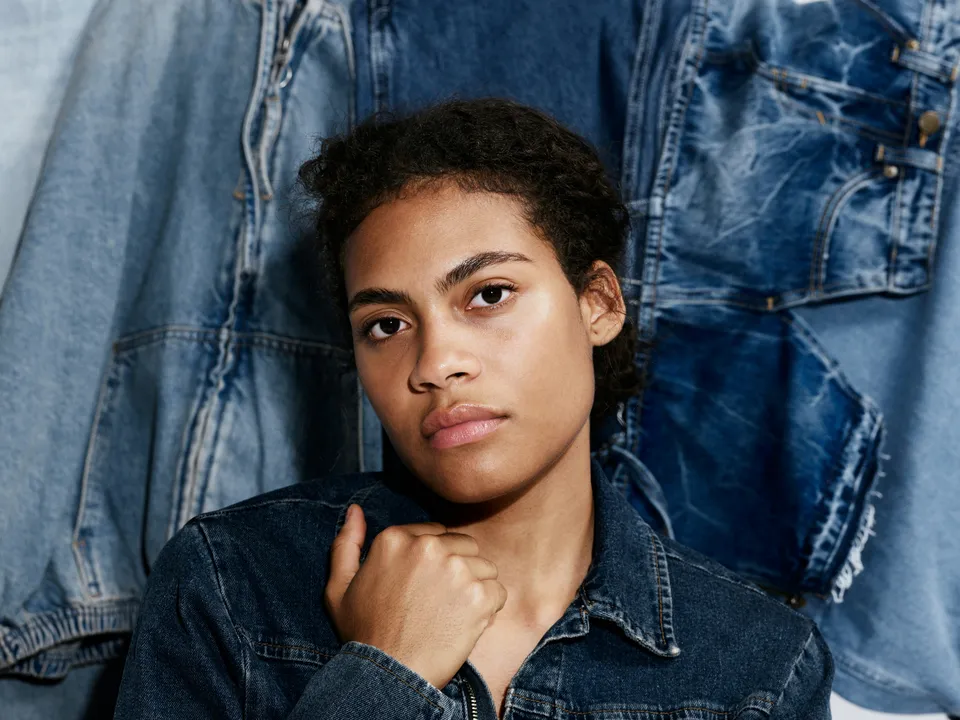


They open it on any device. Email attachments and transfer links get the photos there too, but the choice comes back as a message you have to turn into a list yourself.
The ways photographers do it
| Way | What your client does | What you get back | What it costs you |
|---|---|---|---|
| Email attachments | Opens small copies one by one | A reply naming the photos | Several mails for a big set; finding each named photo by hand |
| A transfer link | Downloads a folder and looks through it on their own computer | A reply with file names, if they copy them right | The link may stop working before they decide; the list is typed by hand |
| A shared cloud folder | Browses the folder, maybe marks favourites | Comments or a list, in that service’s form | Your client needs to manage another service; the folder looks like a folder |
| A contact sheet PDF | Reads a page of thumbnails and writes numbers back | A list of numbers to match to files | Small pictures to judge from; numbers to translate |
| An online proofing gallery | Opens one link, marks ✓ or ✕, sends the selection | The selection as a list or in your catalog, with comments | A tool to set up once |
Before you send
- Cull first. Show the frames you would be happy to deliver, and leave out the near-misses.
- Export JPGs at a size good enough to judge on a screen.
- Keep the file names your catalog uses. The names are how the choice finds its way back to the right photos.
- Decide how many your client should choose, and say so: for an album, a print package or a set number of edits.
- Choose who can open it: a password for private work, a closing date if the choice has a deadline, and whether to ask for the client’s name.
What to write to your client
Here are the photos from Saturday. Mark ✓ on the ones you’d like me to edit and ✕ on any you’d rather leave out, then press Approve selection when you’re done. Choose about 30, and add a comment if you want something changed.
One instruction and one number. Your client should not need to write back to ask what to do.
Sending a set in Skerp
- 1
Upload
Drop exports or a whole folder on any page. JPG, PNG, WebP or HEIC.
- 2
Share
Copy the link, show a QR code or email it, with a password if needed.
- 3
Your client chooses
They mark ✓ on the photos they want, then press Approve selection.


Drop the exported photos, or a whole folder, on any page in Skerp, and a gallery starts. Your client can open the link while the rest are still uploading.
Copy the link, show a QR code, or email it from Skerp. Set Photos to choose (any number, at least, at most, exactly or between): the bar shows how many your client has of the number you set, and Approve selection waits until it adds up.
Your client marks ✓ and ✕, gives stars, adds annotations and approves the selection. You see each approval as it happens; when they are done their gallery shows Approved, and your page shows Selection sent.
The choice, back in your editor
On every plan: copy the approved file names, or download them as a text file, and paste them into Lightroom’s Library filter. Any software that searches by a list of file names works the same way.
On Standard and up: install Skerper in Lightroom Classic and click Sync Now. The approvals become pick flags, color labels, keywords or stars, as you choose, and three smart collections sort them.
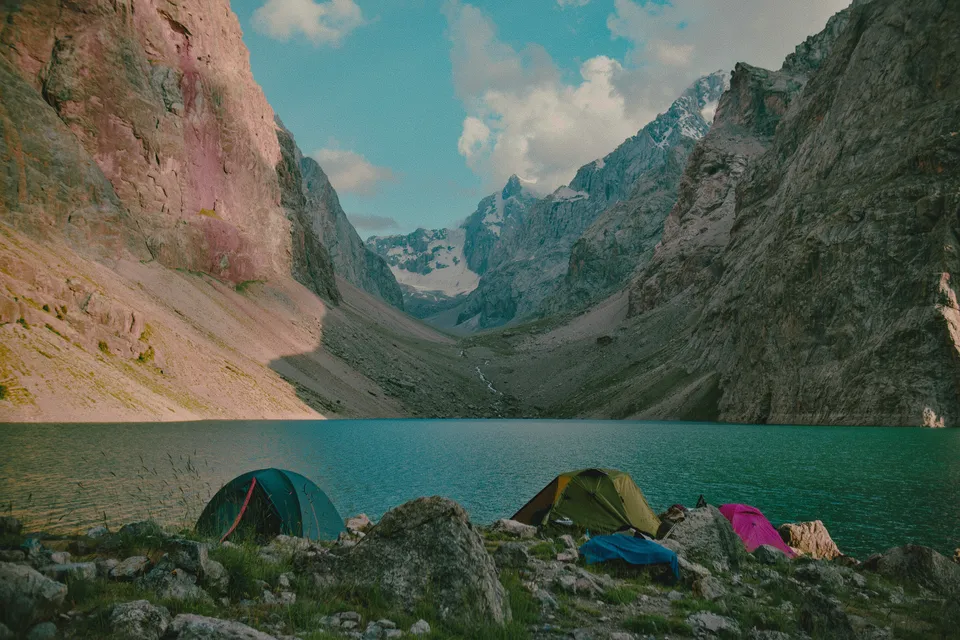


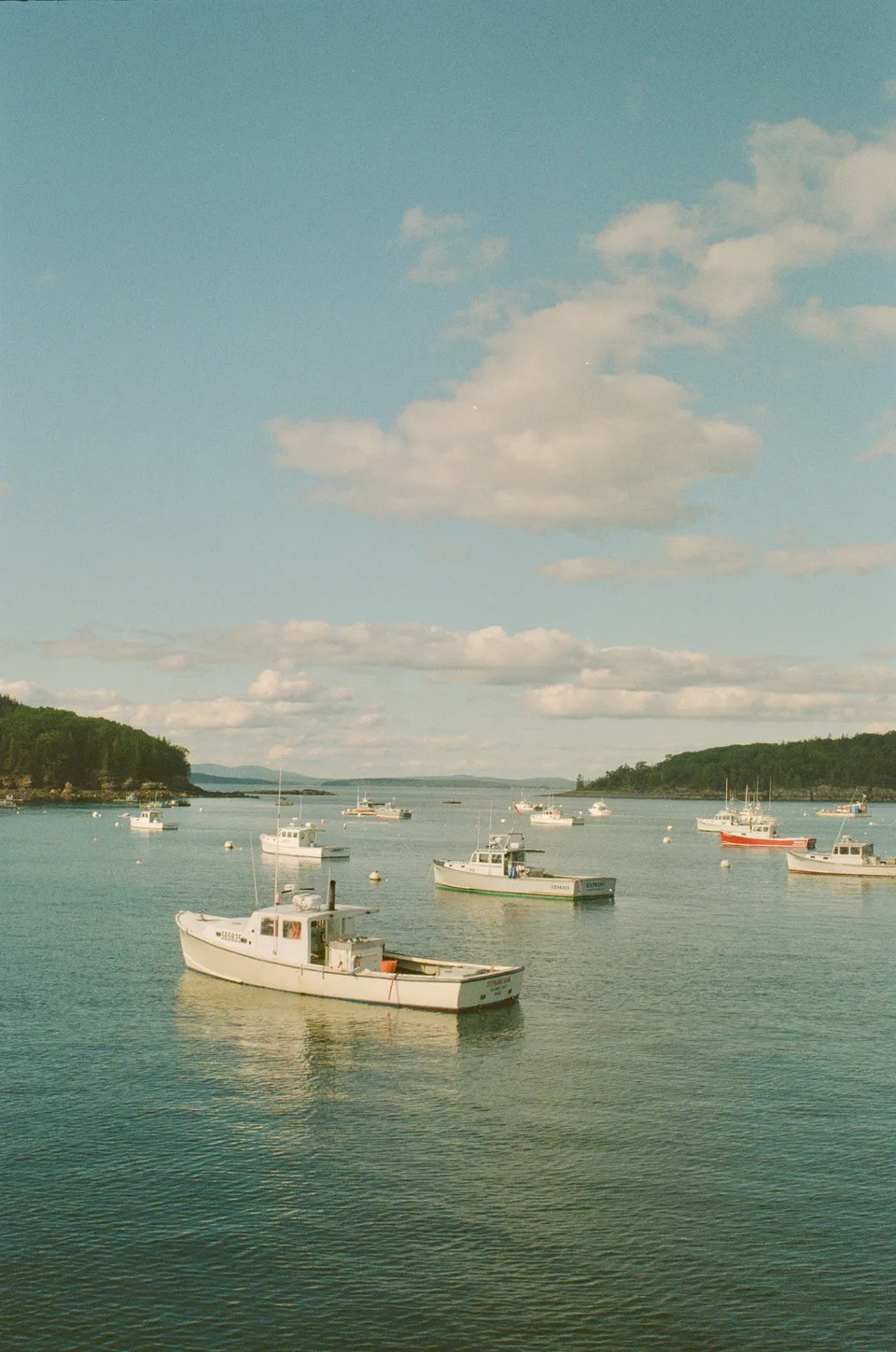
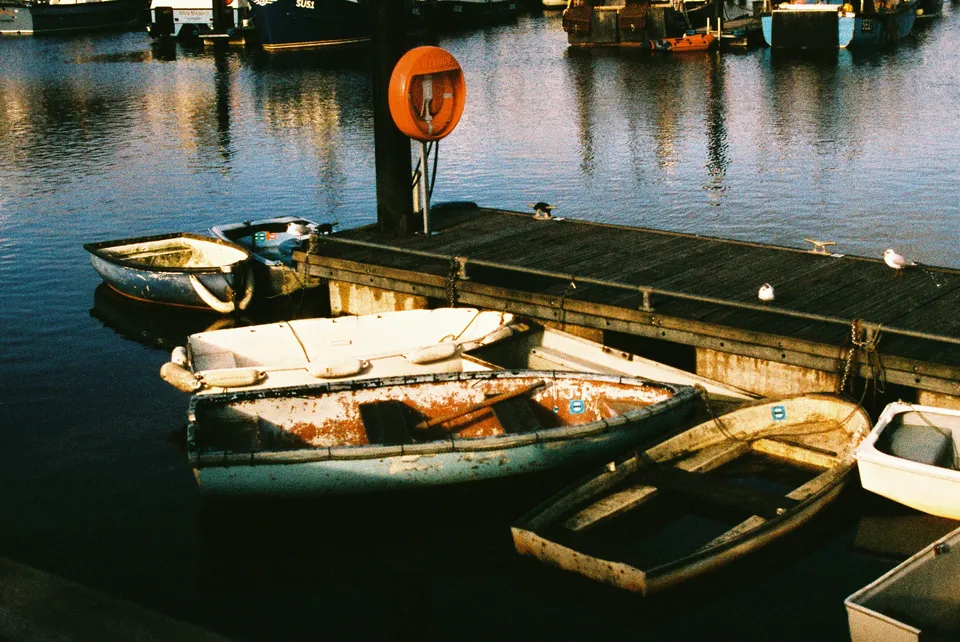





Publish the shoot to a gallery
John Doe
Summer travel story
8 of 24 reviewed · 6 approved · 2 rejected
6 approved, 2 rejected.
Your client chooses, on any screen
One click, and the approvals are in your catalog
Synced “Summer travel story” · 24 photos matched. Client narrowed your selection: ✓ 6 approved ✗ 2 rejected ○ 16 still unreviewed
Traps
- Renamed files If the exported names differ from the catalog’s, the list will not find the photos. Export with the original file names.
- A forwarded link Anyone with the link can open it and change the marks. Add a password, or require a name so you know who did what.
- Too many, or too few Without a number, a client may approve everything or three photos. Ask for a number, and set it as the gallery’s goal.
- A choice with no end If you need an answer by a date, set a closing date. You can always extend it.
Plans, files and data
10 lines: plans, files, data
- What it is
- Photo proofing and delivery for professional photographers
- Who it is for
- Photographers whose clients choose, comment on and approve photos
- Price from
- Free · Standard $15 a month, or $12 a month billed yearly
- Trial
- 14 days of Standard with Albums on every new account, no card
- Your client needs
- A browser on any device, from a computer to a phone; no account, no app
- Files
- JPG, PNG, WebP and HEIC
- Galleries
- Free 3 active galleries · Standard and Pro unlimited
- Storage
- Free 3 GB · Standard 50 GB · Pro 500 GB
- Lightroom
- Skerper for Lightroom Classic, Standard and up; file names on every plan
- Where your data is
- In the EU
Questions
Will the photos lose quality?
Your client chooses from previews made for the screen. Your originals are kept and are what you deliver later.
Can my client choose on a phone or a tablet?
Yes. The gallery is made for every screen, the phone included: swipe and pinch to zoom on a phone, a larger grid and the keyboard on a computer. Choices made without a signal are sent when the connection is back.
Is there a free way to do this?
Skerp Free has every proofing feature for 3 active galleries and 3 GB of storage. No card.
2 more questions
I don’t use Lightroom. Does it still work?
Yes. The approved file names come as a list you can paste into any software that searches by file name.
Can more than one person look?
Yes. Everyone with the link sees and changes the same marks, and the first to press Approve selection sends it for all. For people choosing together that is what you want; for people each choosing their own photos, make one gallery per person.